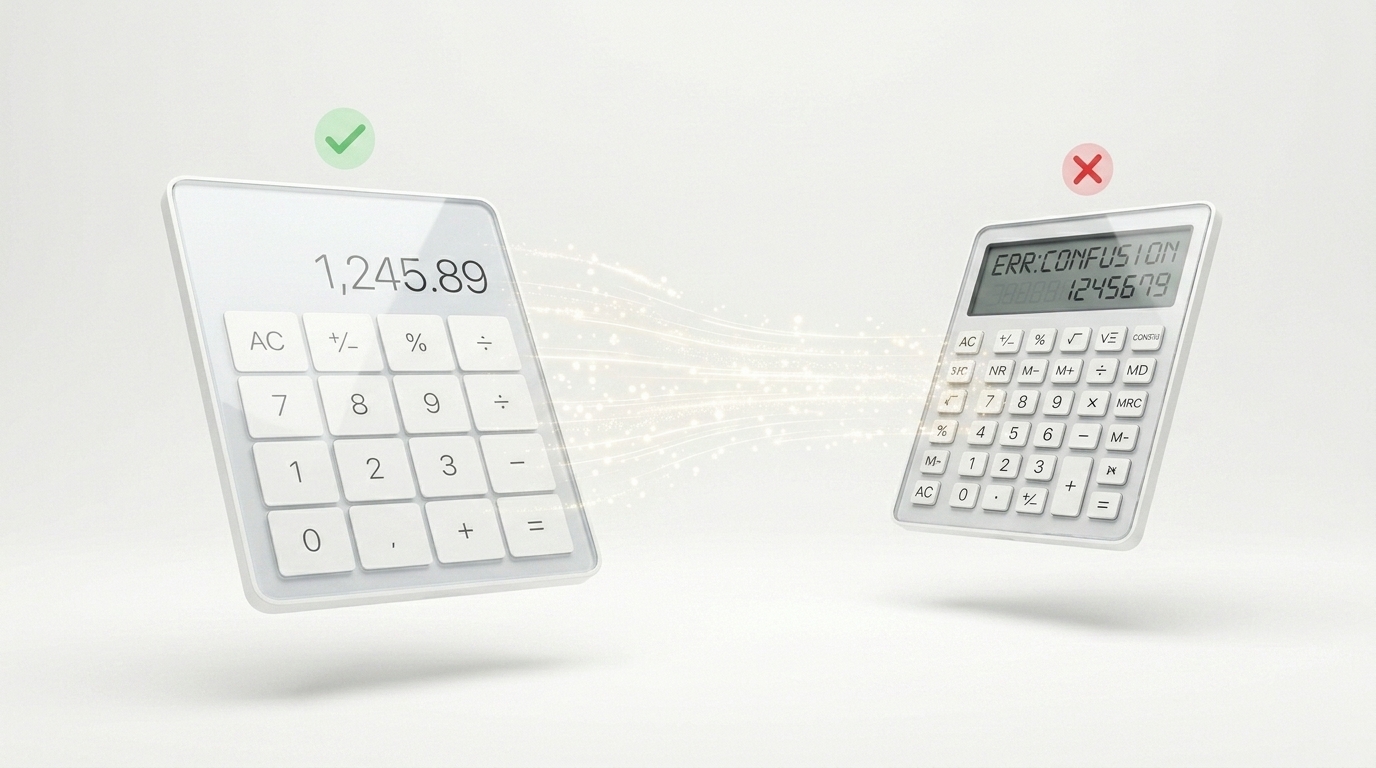
A static price list answers "what does it cost on average?" A pricing calculator answers "what will it cost me?" – and that difference is what gets people to actually request a quote.
A pricing calculator is a small interactive form on your website: a visitor enters details about their project or order, and the calculator shows them an estimated price based on the logic you define. Unlike a fixed price list, it adapts to each visitor's specific situation, which makes the number feel relevant instead of generic.
This guide covers how to plan and build one — whether you already have your pricing logic in a spreadsheet or you're starting from scratch — using Kalkulatorly.online to publish and embed the result.
Why a Pricing Calculator Beats a Static Price List
A static price list forces every visitor to do the math themselves, and most won't bother. If your pricing depends on more than one factor — square meters, number of users, project complexity, add-ons — a plain list of packages either oversimplifies your pricing or overwhelms visitors with too many combinations to compare manually. A pricing calculator handles that complexity for them: they answer a few questions, and the tool does the calculation instantly.
This matters most for service businesses where "it depends" is the honest answer to "how much does this cost?" — construction and renovation, consulting, marketing services, IT projects, and anything quoted by scope rather than a fixed catalog price.
How to Build a Pricing Calculator Step by Step
Step 1 – List Every Variable That Affects Your Price
Before building anything, write down every factor that changes what you charge: hours, square meters, number of users, materials, urgency, add-ons, location. This list becomes your input fields. Be specific about how each variable affects the price — a flat rate per unit, a multiplier, a fixed add-on fee — since that's the logic your calculator will apply.
Step 2 – Choose How You Build It: From Scratch or From Excel
You have two starting points on Kalkulatorly.online. If your pricing logic already exists in a spreadsheet, upload the Excel file and confirm which cells are inputs and which cell holds the final price — your existing formulas carry over as-is. If you're starting fresh, use the visual builder to add fields one at a time (number, dropdown, checkbox) and define how they combine into a price, without writing any code. Many businesses already have a rough pricing spreadsheet somewhere; if that's you, the Excel route is usually faster.
Step 3 – Set Up Your Inputs and Result
Label every field in plain language your visitors will understand — "Project size (square meters)" rather than an internal code. Add a default or example value where it helps people understand what to enter. Then confirm which field shows the final price, and how you want it formatted: as a fixed number, a range, or a currency amount.
Step 4 – Decide Whether to Capture Leads Before Showing the Price
On paid plans, Kalkulatorly.online can ask for a visitor's email before revealing the calculated result. This turns the calculator into a lead-generation tool: instead of giving away a price with no follow-up, you collect a contact alongside a clear signal of buying intent — someone who specified their exact project and asked for a number is a warmer lead than someone who just read a page. Whether to gate the result behind an email is your call; some businesses prefer to show the price instantly to build trust, others prefer the lead-capture step. Both approaches work — choose based on how your sales process operates.
What You Can Build With a Pricing Calculator
- A renovation or construction quote based on area, materials, and finish level
- A marketing or design retainer estimate based on scope and number of deliverables
- A software or IT project cost estimate based on features and team size
- A subscription or service plan estimator based on usage or number of seats
- A consulting fee calculator based on hours and project complexity
Who Should Use a Pricing Calculator
This is the right tool if your pricing genuinely depends on more than one factor and you currently explain it manually — over email, on a call, or in a spreadsheet you send out individually. If you sell a single fixed-price product or service, a pricing calculator adds complexity you don't need; a simple price list will do the job better.
A Practical Example
A renovation contractor used to quote jobs after a phone call and a back-of-envelope calculation. Replacing that with a calculator — square meters, room type, finish level as inputs, an estimated price range as the output — means visitors get a realistic number before they ever pick up the phone, and the contractor only fields calls from people who already know roughly what they'll pay. The pricing logic didn't change; the contractor just stopped explaining it one phone call at a time.
A Note on Getting the Logic Right Before You Publish
The most common mistake when building a pricing calculator isn't technical — it's pricing logic that looks complete on paper but breaks at the edges. Before publishing, test your calculator with a few unusual combinations: the smallest possible project, the largest, a zero or empty input. If a result looks wrong or absurd for an edge case, the underlying formula needs another look, not the interface. Getting this right once, before visitors start using it, is far less work than fielding confused emails afterward.
Frequently Asked Questions
Do I need a developer to build a pricing calculator for my website?
No. You can build a pricing calculator using the visual builder on Kalkulatorly.online, or by uploading an Excel file with your existing pricing formulas — neither requires coding.
Can a pricing calculator collect customer emails before showing the price?
Yes. On paid plans, Kalkulatorly.online can require an email address before revealing the calculated result, which lets you capture leads alongside the pricing interaction.
What if my pricing logic is already in an Excel spreadsheet?
You can upload that spreadsheet directly and confirm which cells are your inputs and which cell holds the final price; your existing formulas are preserved. See our step-by-step guide on turning an Excel file into a web calculator for the full process.
Can I update my prices after the calculator is published?
Yes. If you built it from Excel, update your spreadsheet and re-upload it. If you built it with the visual builder, edit the fields or formula directly in the builder.
How much does a pricing calculator cost to build?
Kalkulatorly.online is free to start, with no credit card required for your first calculators. Check the pricing page for current plans and lead-capture limits.
Build Your Pricing Calculator Today
Stop explaining your pricing one email or phone call at a time. Start for free on Kalkulatorly.online and turn your pricing logic into a calculator your visitors can use themselves. Once it's ready, here's how to embed it on your website so visitors never have to leave your page. For more, see our frequently asked questions or more guides.